Blog · By The Packaging Vista Team · March 26, 2026
What Does "Collate" Mean When Printing?
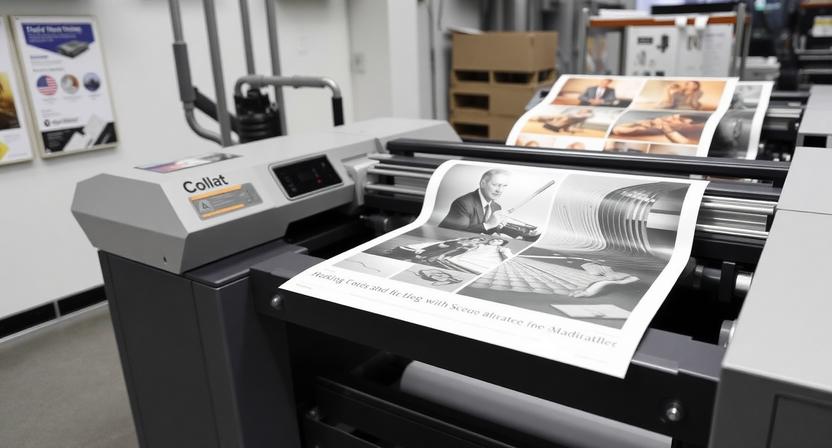
If you have ever printed a booklet or handout, you have seen a small “Collate” checkbox in the print dialog. Collate printing seems clear until you have to explain it.
The choice looks simple. But picking collated vs uncollated shifts the order your pages come out and how much sorting you do next. Below we break down what collate means, when to use it, and how the same idea shows up in custom printing.
What collating means
In printing, collating is the act of putting many sheets of paper into a full, ordered set. Think of it as the printer’s built-in sorter.
Instead of dumping all your copies of each page into separate piles, it builds finished sets for you. The clearest way to grasp it is with a simple case.
The scenario: printing 10 copies of a 3-page handout
Say you are prepping for a meeting. You have a 3-page handout (Page 1, Page 2, and Page 3) and you need 10 copies for the group. When you hit “Print,” you have two picks: Collated or Uncollated.
1. Collated (the “ready-to-distribute” option)
If you pick Collated, your printer prints the pages in order, one full set at a time:
- The printer prints Page 1, Page 2, Page 3 (Set 1)
- Then Page 1, Page 2, Page 3 (Set 2)
- Then Page 1, Page 2, Page 3 (Set 3)
- And so on, until it has created 10 complete sets.
The result: you walk over and find 10 neat stacks of paper. Each stack is a ready-to-use handout. So you can grab one per person without sorting.
2. Uncollated (the “sort-it-yourself” option)
If you leave Collate unchecked (or select “Uncollated”), your printer prints all copies of each page together:
- The printer prints 10 copies of Page 1
- Then 10 copies of Page 2
- Then 10 copies of Page 3
The result: you find three stacks – one with 10 copies of page 1, one with 10 of page 2, one with 10 of page 3. To make 10 full handouts, you now have to grab one page from each stack and stack them yourself.
A simple analogy: making sandwiches
Think of it like making 10 sandwiches for a picnic.
- Collated is like making one full sandwich at a time: bread, meat, cheese, top bread, into a bag, then start the next. At the end you have 10 ready-to-eat sandwiches.
- Uncollated is like an assembly line: meat on 10 slices of bread, then cheese on all 10, then top bread on all 10. At the end you have 10 sandwiches that still need one last step – you do it yourself.
When should you use each option?
Knowing when to collate saves time and effort.
Use Collated when:
- You are printing multiple copies of a multi-page document (handouts, reports, booklets, scripts).
- You need the documents ready for immediate distribution.
- You want to save time on manual sorting.
Use Uncollated when:
- You are printing multiple copies of a single-page document (flyers, invitations, forms).
- You are printing one copy of a multi-page document (collating makes no difference).
- You need to separate large batches by page – for example, hole-punching every page 1 in one pass.
A quick visual summary
| Feature | Collated | Uncollated |
|---|---|---|
| Print order | 1,2,3 – 1,2,3 – 1,2,3 | 1,1,1 – 2,2,2 – 3,3,3 |
| Output | Complete sets | Batches by page number |
| Best for | Handouts, reports, presentations | Flyers, forms, bulk sorting |
| Effort | Ready to use | Needs manual assembly |
The digital version: collating in PDFs
The idea of collating is not just for real printers. You will also see a “Collate” option when printing to PDF or using digital tools. It does the same job. It sorts how many copies of a file are laid out. So the PDF reads as ordered sets, not batches of like pages.
Why collating matters in custom printing
Collating is mainly a multi-page thing. So it matters most for printed items with many leaves: a custom printed marketing brochure, a multi-page presentation folder insert, an instruction booklet, or a leaflet inside a product box.
When those pieces run in bulk, collating keeps each set in the right page order. So it is ready to fold, bind, or insert. For one-sheet pieces like business cards or a one-panel label, collating is not a factor. Every copy is the same.
Knowing the term helps you give clearer briefs and skip a pile of out-of-order pages. For a wider look at print options, our custom box printing guide covers the methods and finishes that go into a printed pack.
Collating and binding go together
Collating is the step that makes binding work. Once each set of pages is in the right order, it can be stapled, saddle-stitched, perfect-bound, or folded into a booklet. That is only smooth if the pages were collated first.
Print uncollated and you would have to hand-sort every set before binding. That is slow and prone to error at any real count. This is why multi-page pieces are almost always run collated when copies are made in bulk. The printer sends out ready-ordered sets. The binding line takes them straight through.
The same logic works for printed parts that go inside a pack, like folded instruction sheets or product guides. An out-of-order set would reach the buyer wrong.
Common collating mistakes to avoid
A few simple slips cause most collating headaches. The classic one: leaving the box unchecked on a big multi-page job. You return to find page-batches, not sets.
Mixing up page order in the source file is another. Collating keeps whatever order your file has. So a wrong-order file makes wrong-order sets. For two-sided files, check the duplex and page-order settings together. An odd page count can throw off where blank backs fall.
The fix in every case is to view the first set before running the full run. Just like you would proof a printed box before you commit to a full run.
Frequently asked questions
What does collate mean when printing?
It means the printer builds full, in-order sets of a multi-page file. It prints page 1, 2, 3 together for each copy. It does not print all copies of page 1, then all of page 2, and so on.
What is the difference between collated and uncollated?
Collated makes ready-to-use sets in page order. Uncollated makes stacks grouped by page number that you must sort yourself.
Do I need collating for a single-page print job?
No. Collating only affects multi-page files. For flyers, forms, labels, or one-panel pieces, every copy is the same. So the setting makes no difference.
Does collating matter for custom packaging?
It matters for multi-page parts like brochures, booklets, and folder inserts that ship with a product. For a single printed box or label, it is not a factor.
Why is collating important for multi-page print jobs?
Because it’s the step that makes binding, folding, and inserting work at scale. Once pages are in the right order, saddle-stitching, perfect-binding, or booklet folding runs straight through. Print uncollated and you’d have to hand-sort every set before binding – slow, error-prone, and unworkable at any real quantity. Collating is why a 1,000-copy booklet run doesn’t become a two-day sorting job.
What are the benefits of choosing collated over uncollated?
Three main ones: sets arrive ready to hand out or bind (no manual sorting), it dramatically cuts finishing time on multi-page jobs, and it lowers the chance of out-of-order errors reaching the recipient. For product-insert booklets that go inside a printed box, collated output means the binding line takes them straight to the next step with no rework.
How do I choose between collated and uncollated?
Ask two questions: is the file multi-page, and do you need finished sets? If yes to both – handouts, reports, booklets, product-insert leaflets – collate. If you’re printing many copies of a single page (flyers, forms, labels) or need to batch-process by page number (hole-punch every page 1 in one pass), uncollated is faster.
For any custom box insert or brochure that ships with a product, collated is almost always right.
Which option is best for booklets that ship inside a product box?
Collated, every time. A product insert or instruction booklet that arrives out of order reads as a defect – and if it’s bound or folded, the pages won’t line up at all. When we print multi-page inserts to ship inside a custom box, they run collated by default so the binding and folding line delivers ready-ordered sets straight into the packing station.
For more on this topic, see guide to custom printed boxes from OLX Packaging.
Need multi-page inserts, booklets, or printed packs done right? Our US team prints with offset and digital, offers free design help, and keeps your sets in order. Request your free quote or contact our team to get started.