Blog · By The Packaging Vista Team · October 18, 2026
What Does Collate Mean in Printing? Collate vs Uncollate Explained
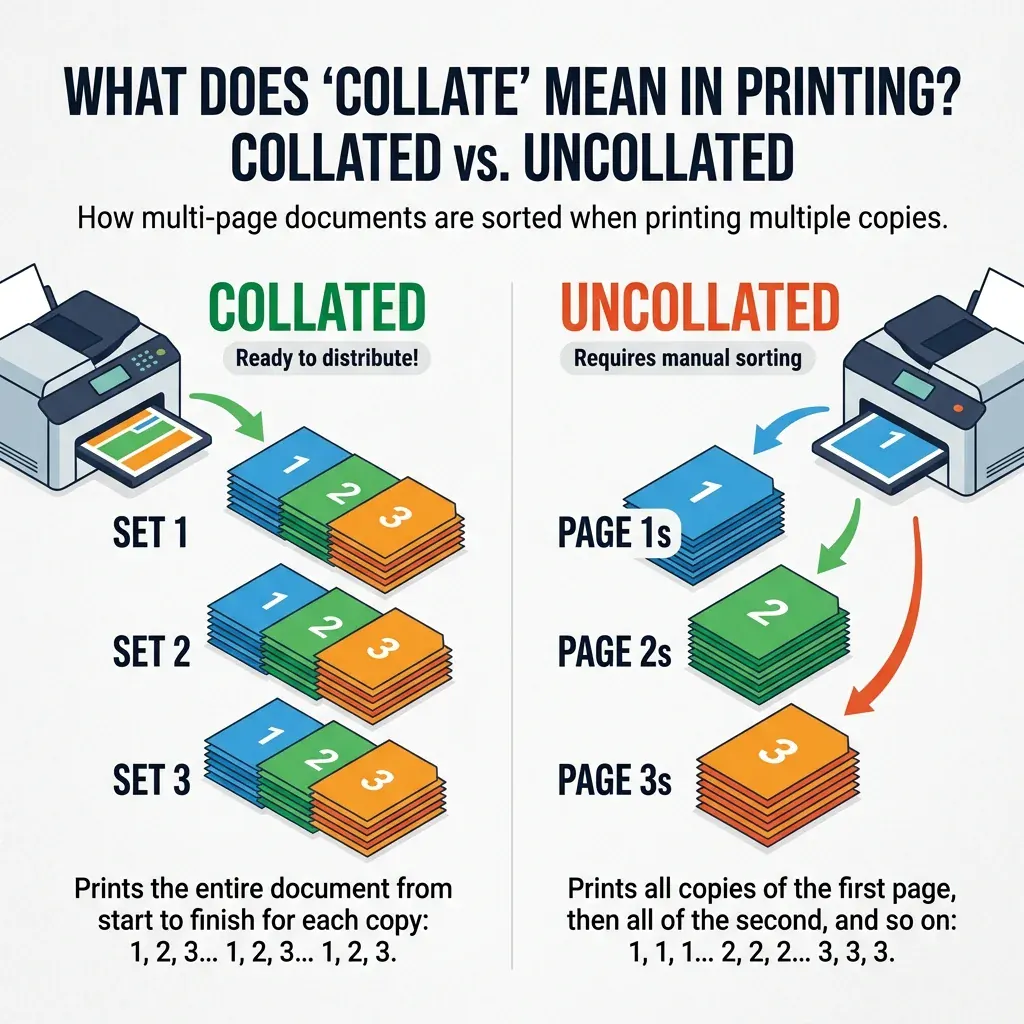
In printing, "collate" means to assemble each printed copy with its pages in the correct order — so a 3-page document printed as 10 collated copies produces 10 complete sets (page 1, 2, 3, page 1, 2, 3, page 1, 2, 3, and so on). The opposite is uncollated printing, where the printer runs all copies of page 1 first, then all copies of page 2, then all copies of page 3.
Collated output is ready to staple or bind as finished documents; uncollated output has to be hand-sorted into sets. The collate setting is one of the most common print-dialog toggles that users encounter without really understanding what it does — this guide covers the complete meaning, when to use each mode, and the related terminology.
Quick answer
- Collate = order-first. Each copy prints as a complete set: 1, 2, 3 / 1, 2, 3 / 1, 2, 3.
- Uncollate = page-first. All copies of page 1 print first, then all copies of page 2: 1, 1, 1 / 2, 2, 2 / 3, 3, 3.
- Default is usually collated in modern office printers — the setting you want for finished documents.
- Toggle in print dialog: Windows uses "Collated" / "Uncollated" radio buttons; Mac uses a "Collate" checkbox.
What does "collate" mean?
Collate is a verb that comes from the Latin collatus ("to bring together"). In printing, it means to put the pages of a document in their correct order so that each copy is a complete, assembled set. If you're printing 20 copies of a 10-page report, collating produces 20 ten-page documents each in the order 1-2-3-4-5-6-7-8-9-10.
Uncollated printing produces one 200-page stack ordered 1-1-1-...-20 copies of page 1, then 20 copies of page 2, etc.
For almost any document longer than one page that will be read as a set — reports, booklets, presentations, meeting handouts, employee manuals — collated is the setting you want. The output comes off the printer tray ready to staple, bind, or hand out.
Uncollated is the choice when you deliberately want copies of a single page grouped together — for example, printing 50 copies of page 1 of a flyer and 50 copies of page 2 of a different flyer in a single job.
Collated vs uncollated printing: side-by-side comparison
| Collated | Uncollated | |
|---|---|---|
| Output order (3-page doc, 3 copies) | 1,2,3 → 1,2,3 → 1,2,3 | 1,1,1 → 2,2,2 → 3,3,3 |
| Ready to staple/bind? | Yes, straight from the tray | No, must be hand-sorted into sets |
| Best for | Reports, booklets, manuals, meeting handouts | Flyers, posters, bulk single-page copies, or when sorting manually |
| Print speed | Slightly slower (printer may buffer sets) | Slightly faster (prints each page in one continuous run) |
| Toner / ink usage | Identical to uncollated | Identical to collated |
| Common default? | Yes (modern office printers) | Legacy large-print-shop default |
When to use collated vs uncollated printing
The decision is purely about output organization — both modes use the same amount of paper and ink. Pick:
- Collated for anything that reads as a complete document: a 20-page report that goes to 10 team members, a 50-page employee handbook distributed to new hires, a 12-slide presentation printed as handouts, a 100-page book printed in short-run.
- Uncollated for bulk single-page items grouped by page: a stack of 500 copies of a 1-page flyer; a 2-page coupon set where you want all page-1s in one bin and all page-2s in another; a print shop that is going to hand-collate using a dedicated collator machine.
Modern inkjet and laser office printers default to collated. The uncollated setting is more common in commercial print-shop workflows where high-volume uncollated output is fed into a mechanical collator or binding machine downstream.
How to toggle collate in the print dialog
The exact location varies by operating system and application, but the setting is nearly always visible in the print dialog:
- Windows (most apps): File → Print → Properties or Preferences → look for "Collated" vs "Uncollated" radio buttons under Finishing or Output options.
- macOS: File → Print → look for a "Collate" or "Collated" checkbox. Checked = collated; unchecked = uncollated.
- Google Docs / Google Chrome: Print dialog → Advanced → "Collate" or "Pages per sheet" options.
- Adobe Acrobat: File → Print → Properties → Layout tab usually has the collate toggle under Finishing.
- Enterprise print managers (Papercut, uniFLOW, Ricoh / Konica Minolta MFPs): Collate is typically on by default; disable via Finishing options in the driver.
If you print the same document twice with different settings, you can see the difference in seconds: collated produces a stack where you can hand the first copy off intact; uncollated produces a stack where every copy of page 1 is on top.
Collated printing on commercial print runs (books, brochures, booklets)
For professional print production — booklets, catalogs, saddle-stitched brochures, perfect-bound books — collation is not a toggle, it's a built-in step. Commercial presses produce printed signatures (large sheets with multiple pages printed on both sides), which are then folded, trimmed, and gathered in order.
The gathering step is the collate step at commercial scale, and it's done by dedicated machines (gatherers, saddle-stitching lines, perfect binders) rather than by a print-dialog toggle.
Imposition — the layout of pages on the signature so that after folding and trimming the pages end up in the correct reading order — is the invisible planning step that makes commercial collation work. A 32-page saddle-stitched booklet is typically printed as four 8-page signatures that fold and gather in exactly the right sequence to produce page 1 through 32 in order.
Misprinted imposition is one of the most expensive mistakes in commercial print production; a 10,000-copy run with wrong imposition means every booklet has pages in the wrong order, which usually means scrapping the entire print run.
For packaging-print buyers, collation matters mostly when ordering booklets, inserts, instruction manuals, or branded print collateral alongside custom boxes. See our custom box printing guide for the broader print-production workflow.
Related printing terms worth knowing
Collate is one of a small vocabulary of printing-dialog terms that confuse non-print-industry users. The rest of the glossary:
- Duplex — printing on both sides of the paper. "Short-edge binding" (flip across the short side, like a legal pad) vs "long-edge binding" (flip across the long side, like a book).
- Simplex — printing on one side only. The opposite of duplex.
- Signature — a single large press sheet that holds multiple pages and gets folded into a booklet section.
- Imposition — the arrangement of pages on a signature so they end up in order after folding.
- Bleed — extending artwork past the trim edge so there's no white strip after cutting. See our bleed and safe zone guide.
- Trim — the final cut that produces the finished page size.
- Saddle stitch — booklet binding method using staples through the folded spine.
- Perfect bind — book binding method using glue on a flat spine (how paperback books are bound).
- Spiral / coil bind — binding using a plastic or metal coil through punched holes.
- CMYK — the four-color process print inks: Cyan, Magenta, Yellow, blacK.
- Pantone / PMS — spot-color matching system for brand color consistency.
- DPI (dots per inch) — print resolution; 300 DPI is the commercial standard.
- Finishing — post-press operations: cutting, folding, laminating, foil stamping, embossing, die-cutting.
For packaging specifically, the finishing stage is where custom boxes diverge from flat-paper printing. See our custom box finishes guide for foil, spot UV, soft-touch, and embossing options.
Frequently asked questions
What does collate mean when printing?
Collate means to assemble each printed copy in page order (page 1, 2, 3) so each copy is a complete set. The opposite is uncollated printing, where all copies of page 1 print first, then all copies of page 2. Collated is the default for office printers and the right choice for reports, booklets, and documents you want to staple or hand out as sets.
What is the difference between collated and uncollated printing?
Collated prints each copy as a complete ordered document (1, 2, 3 for every copy). Uncollated prints all copies of page 1 first, then all copies of page 2, and so on. Both use the same amount of paper and ink — the difference is purely how the output stacks come off the printer. Collated is ready to staple; uncollated has to be hand-sorted or run through a collator.
Should I collate when printing?
Yes, for almost any document longer than one page that will be read as a set. Reports, booklets, employee manuals, meeting handouts, presentations, instruction inserts — all should be printed collated. Uncollated is only for bulk single-page items (like flyers) where you want copies of each page grouped together.
Why is collated printing slower?
Slightly slower on some printers because the printer may buffer each set in memory before producing the next, and copier-style multifunction printers may re-feed paper for each collated copy. The slowdown is minor on modern lasers (seconds, not minutes), and the time saved not hand-sorting the output usually makes collated faster overall.
What does the "collate" checkbox do on my printer?
Checking the collate box tells the printer to assemble each copy in page order. Unchecking it switches to uncollated mode, where all copies of page 1 print first, then all copies of page 2. The default is usually collated (checked). On Mac print dialogs it's a single "Collate" checkbox; on Windows it's usually two radio buttons for "Collated" and "Uncollated."
What is the opposite of collated?
Uncollated. In uncollated printing, the printer runs all copies of page 1 first, then all copies of page 2, then all copies of page 3. The output is a stack where each page is grouped together, which has to be hand-sorted or mechanically collated afterward if you want the pages in document order.
Is "collate" the same as "sort"?
They mean the same thing in print-dialog context. Some printer drivers use "sort" instead of "collate" (common on older Canon and HP MFPs), but the behavior is identical: produce each copy as a complete ordered set.
Does collating cost more?
No. Collated and uncollated printing use the same amount of paper, toner, and ink. The only cost difference is time: collated is slightly slower on some printers because of memory buffering, which is negligible for most jobs.
How do commercial printers collate books and booklets?
Commercial print production uses signatures (large press sheets printed with multiple pages on both sides) that are folded, trimmed, and gathered by dedicated machines (gatherers, saddle-stitchers, perfect binders). The gathering step is commercial-scale collation.
Imposition — the planned arrangement of pages on each signature — is what makes commercial collation produce the correct reading order.
Ordering custom printed inserts, booklets, or branded print collateral alongside your custom boxes? Browse custom box printing options, see our custom box printing guide, or request a free quote.
Part of our custom box printing guide — the pillar reference for every printing topic on this blog.